Choose Omni 1.1 Flash when a fixed duration tier suits the job or you need to combine a reference video with images. Choose Omni 1.2 Flash when you need finer control over duration, more image references, or a dedicated edit or continuation workflow.
Two Omni Flash models, different workflows
Gemini Omni 1.1 Flash and Omni 1.2 Flash turn text and visual references into videos with synchronized sound. Both are available through TTAPI with 720p, 1080p, and 4K output. Their differences become practical when a brief needs a particular duration, several image references, a borrowed camera movement, or changes to existing footage.
Start with the source material. If the brief combines still images and a reference video, 1.1 supports that combination. If you want to change an existing clip or append a new scene to it, 1.2 provides dedicated editing and continuation modes.
The examples below show a manuscript scanner animated from one image, an Arctic building guided by image and motion references, and a ramen-shop scene edited from rain to snow. Each comes with its published prompt and original inputs so you can examine how the brief relates to the result.
Omni 1.2 Flash vs Omni 1.1 Flash
A short branded clip can fit either model. The choice becomes clearer when the shot needs an exact duration, multiple image references, or a revision to footage you already have.
| Workflow | Omni 1.2 Flash | Omni 1.1 Flash |
|---|---|---|
| Text or image generation | 3–15 seconds | 4, 6, 8, or 10 seconds |
| Output resolution | 360p, 720p, 1080p, or 4K | 720p, 1080p, or 4K |
| Image references | Up to 10 | One or three |
| Video input | One source video for editing or continuation | One reference video, with optional image references |
| Billing | Per second by resolution | Resolution and duration package |
Omni 1.1 Flash for fixed clip packages
A 6-second vertical product teaser is a good example of a brief that fits a preset duration. The 720p and 1080p tiers cost the same at a given duration. At 6 seconds, either costs 30 quota, while the 4K package costs 80 quota. The documented billing defaults are 720p and 6 seconds.
For a campaign built around both a reference clip and product stills, 1.1 accepts one reference video alongside one or three images. With a reference video, the duration value selects the billing tier. Use the completed output to check the actual length.
Omni 1.1 with a supplied first frame
A first frame gives the video a specific subject, composition, and starting state. In Runware's manuscript-scanner example, the input already contains the conservator's gloved hands, the scanner, and the antique page. The prompt directs the scan across the parchment and asks revealed markings to remain attached to its surface.
Watch the device's shape, the fingers, and the line between scanned and untouched paper. These details make the example relevant to equipment demonstrations, product explainers, and other clips where the opening image carries much of the visual brief.
The Omni 1.1 gallery also includes a restrained moving portrait of a wildfire meteorologist, sunrise aerial footage over pine mountains, perfume photography, scientific micro-imagery, and animation. Its eight examples span people, products, landscapes, and stylized scenes.
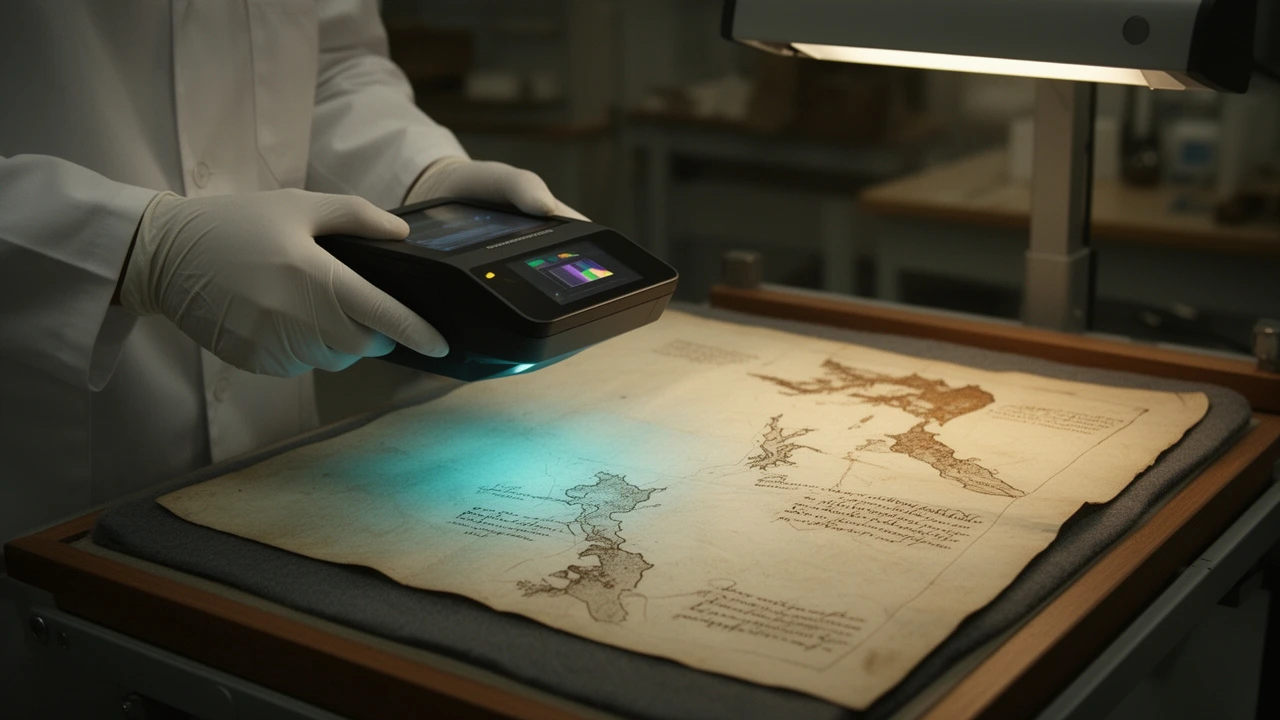
Create a polished museum-equipment product demonstration that begins exactly from the supplied opening frame. In one continuous, stable close-up shot, the conservator slowly guides the handheld multispectral scanner from left to right above the antique manuscript while maintaining a constant height. A narrow cyan scanning band travels directly beneath the device. As it passes, previously invisible cartographic details emerge naturally on the parchment: delicate coastline contours, compass construction lines, and faded handwritten route marks become legible in dark sepia and subtle false-color traces. Keep the revealed details anchored precisely to the paper with no floating graphics or app interface. Include small realistic motions: controlled gloved fingers, a slight flex in the scanner cable, drifting dust motes, and gentle reflections moving across the scanner housing. The camera makes a very subtle forward push to emphasize the before-and-after boundary between the untouched faded area and the newly revealed section. End with the scanner near the right side of the page and most of the hidden map exposed. Premium technical-explainer cinematography, credible museum conservation workflow, warm archival laboratory lighting contrasted with restrained cyan illumination, physically accurate hands and equipment, smooth deliberate motion, consistent product geometry, no cuts, no logos, no captions, no UI, no extra tools entering frame.
Omni 1.1 with image and motion references
The Arctic seed-vault example assigns a different role to each input. The image supplies the building's identity and geometry. The video supplies a lateral camera arc with a forward drift and gentle rise. The prompt then asks for snow, polar twilight, and warm light at the entrance.
This is a useful brief for architectural films and location concepts. Compare the finished shot with both inputs, checking whether the entrance stays recognizable and whether the camera follows the requested movement as the lighting and terrain change.
The published Runware clip is seven seconds long. TTAPI's Omni 1.1 requests use the documented 4, 6, 8, or 10-second packages, with duration selecting the billing tier when a reference video is supplied. The gallery records the actual source clip's length.
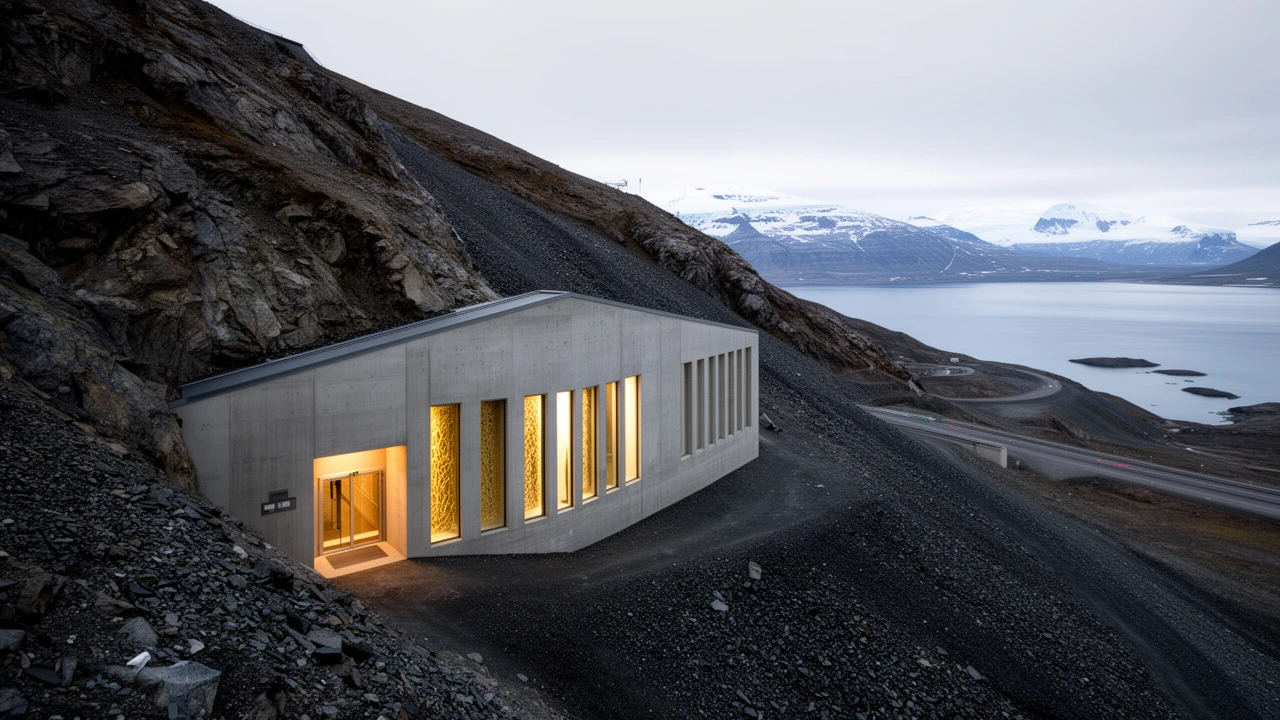
Create a finished seven-second documentary establishing shot of the Arctic seed vault shown in the reference image, transformed from its snow-free midsummer setting into deep winter during polar night. Preserve the reference image's specific building identity and geometry: the angular concrete entrance embedded in the mountainside, facade proportions, illuminated-art panel placement, weathered surfaces, road alignment, shale slopes and fjord geography. Cover the terrain and road edges with believable accumulated snow while keeping exposed wind-scoured rock visible. Relight the entire scene with cold cobalt-blue polar twilight, soft cyan ambient snow bounce and warm restrained illumination spilling from the entrance; the decorative facade lighting should glow clearly without clipping. Add a faint violet band near the horizon, low clouds and sparse wind-driven powder moving across the foreground. Adopt the reference video's camera choreography rather than its building: one continuous stabilized low-altitude lateral arc from left to right, with subtle forward drift and a gentle rise, producing convincing parallax between foreground snowbanks, the vault entrance, mountain slopes and distant fjord. Maintain realistic drone inertia and a calm institutional-documentary mood. The transformation must feel fully integrated into a new winter scene, not like a filter, slideshow, endpoint interpolation or pasted building. Natural atmospheric depth, physically coherent shadows and reflections, crisp architectural detail, restrained cinematic contrast, no cuts, no time-lapse, no people, no vehicles, no added logos, captions or titles.
Omni 1.2 Flash for precise duration, edits, and continuation
1.2 suits clips that need a duration between the older package tiers. It can generate a 5-second insert or a 12-second establishing shot from text or images, and it accepts up to ten reference images. At 720p or 1080p, a 5-second generation costs 25 quota. Rates are 3 quota per second at 360p, 5 at 720p or 1080p, and 10 at 4K.
When you already have footage, use editing to revise the clip or continuation to append 3–10 seconds. Continuation charges only for the new seconds. Editing follows the source length and bills its duration after subtracting 0.15 seconds and rounding up, with a one-second minimum and a 15-second maximum. TTAPI rejects editing when the source duration cannot be read or exceeds 15 seconds.
Omni 1.2 for revising a finished scene
In Replicate's ramen-shop example, the source clip already establishes the chef, customer, dialogue, and handheld camera movement. The edit prompt asks for snow outside the window and a winter coat and scarf on the customer while preserving the scene's performance and timing.
Play the original and edited clips to compare the clothing, window, character identity, and camera path. This workflow fits seasonal campaign variations or scene revisions where a usable performance already exists.
The six Omni 1.2 gallery examples also include a pottery workshop, a continuous flight through the Pantheon, a beehive explainer, a cassette color reveal, and a vertical farmers-market product ad. They cover text generation, a supplied first frame, multiple image references, and video editing.
Change the season to a snowy winter night. Snow falls past the window instead of rain, and the young woman wears a red knit scarf and wool coat instead of the raincoat. Keep the chef, the dialogue, the timing and the camera move exactly the same.
Choose by the video brief
At 720p or 1080p, a 4-second text-to-video request costs 25 quota on 1.1 and 20 quota on 1.2. At 10 seconds, it costs 40 quota on 1.1 and 50 quota on 1.2. For a batch of clips with different lengths, calculate the cost for each length before choosing a default model.
If both models fit the task, compare outputs using the same prompt, aspect ratio, resolution, and compatible references. Review whether the motion reads naturally, the subject stays recognizable, and the result fits the final cut.
Open the model that matches the job.
Compare the model pages, then follow the current video API documentation.